
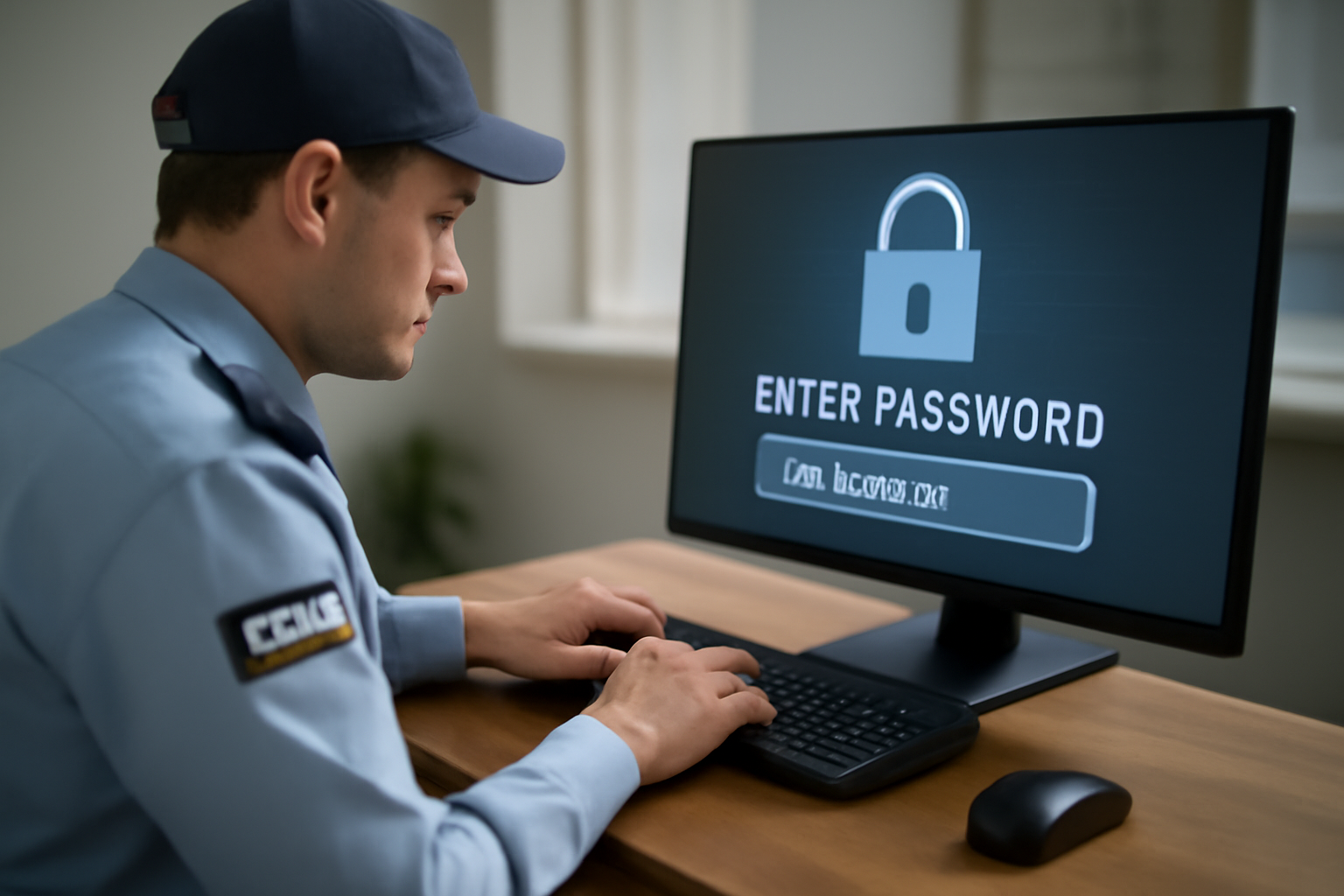
Password Security and Management
As a security guard, you protect people and property. But you also need to protect digital information. Weak passwords are one of the top ways hackers get access. A strong password can stop them cold.
Why Passwords Matter
Passwords are your first line of defense. They protect your work accounts, emails, and even camera systems. If someone guesses your password, they can:
- Access private reports
- Change security system settings
- Steal personal or company info
This puts you, your team, and your site at risk.
How to Create Strong Passwords
Follow these tips to build a strong password:
- Use at least 12 characters
- Include upper and lowercase letters
- Add numbers and symbols
- Avoid names, birthdays, or common words
- Don’t reuse passwords between accounts
Try using a passphrase. Pick four random words that don’t go together. Add numbers or symbols between them. Example:
Blue!Train7Pizza*Monkey
Where to Store Passwords
Never write passwords on paper or save them in notes on your phone. Use a password manager instead. These tools store and protect your passwords. They also help you create new ones.
Some trusted password managers include:
- Bitwarden (free version available)
- 1Password
- LastPass
Choose one that fits your needs and follow your company’s policy.
Managing Passwords Over Time
Good password habits keep you safe. Follow these rules:
- Change passwords every 3–6 months
- Update passwords after a breach or if you suspect someone saw it
- Don’t share passwords with anyone
If you must share access (like to a team system), use a manager that lets you share securely.
Shift Checklist: Password Security
- Log in only on trusted devices
- Use strong, unique passwords for each system
- Lock your screen when stepping away
- Log out at the end of your shift
- Report strange account activity right away
Quick Scenario
You’re working night shift and need to check the camera system. You notice a coworker’s login is saved in the browser. You could use it, but that’s not safe. Instead, you report it to your supervisor and ask for your own login.
Lesson: Never use someone else’s password. It’s a safety risk. Always follow site policy and local law.
3-Question FAQ
1. What if I forget my password?
Use the password reset option or your password manager. Don’t try to guess too many times or you may get locked out.
2. Is it okay to use the same password for work and personal accounts?
No. If one account is hacked, the others are at risk. Use different passwords for each account.
3. What if I think someone knows my password?
Change it right away and report it to your supervisor. Always follow site policy and local law.
Action Takeaway
Strong passwords protect your work and your team. Use a password manager, keep passwords private, and update them often. Stay alert. Stay safe.

